
Type the code. See the path.
Change a G-code program right in NC Proof. The toolpath redraws as you type and the tool sits on the line you are editing, in NC Proof Turn and Mill.
Most of the time you open a program to change something: a feed, a depth, one move that goes a little too far. In Edit & Wireframe mode you make that change right in NC Proof and see what it does while you type.
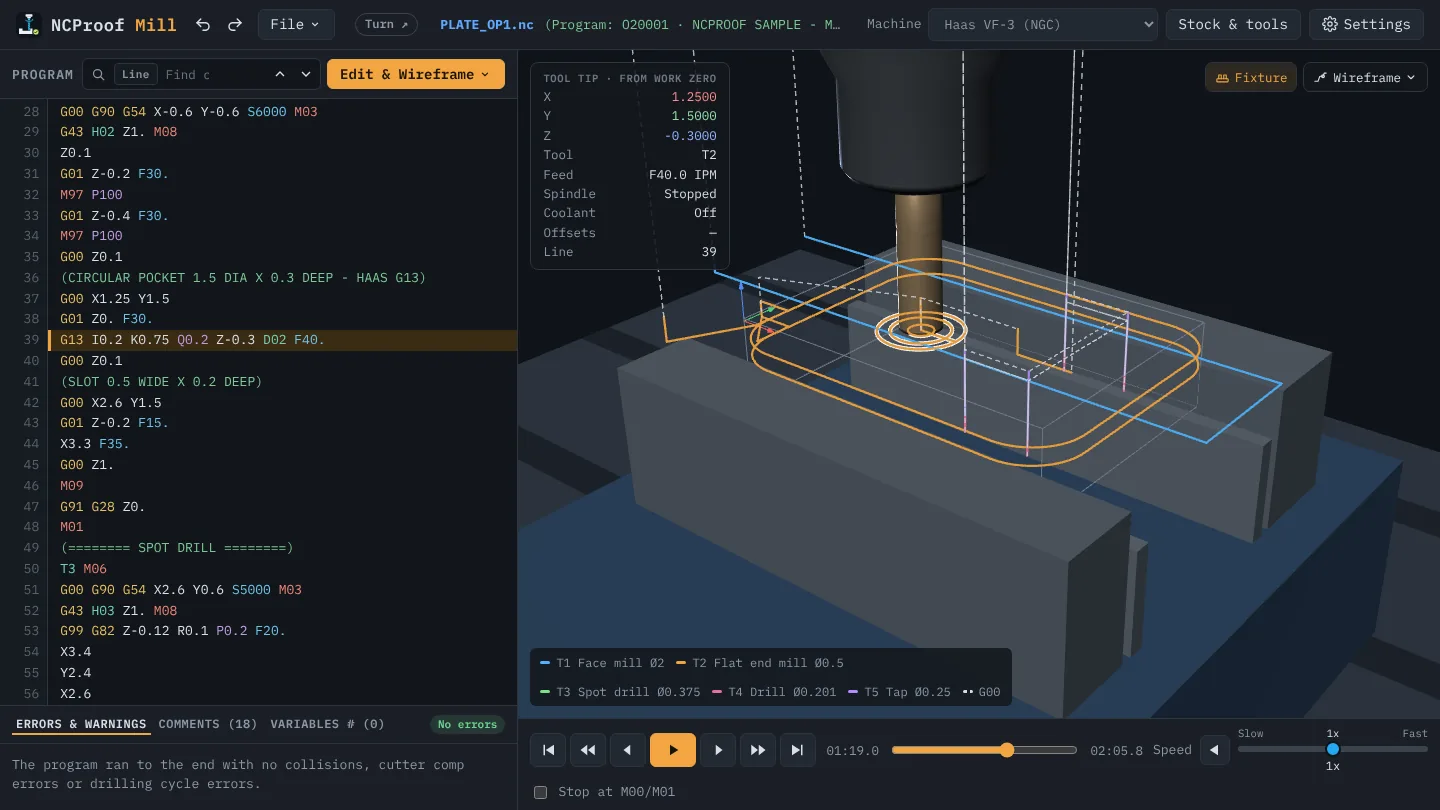
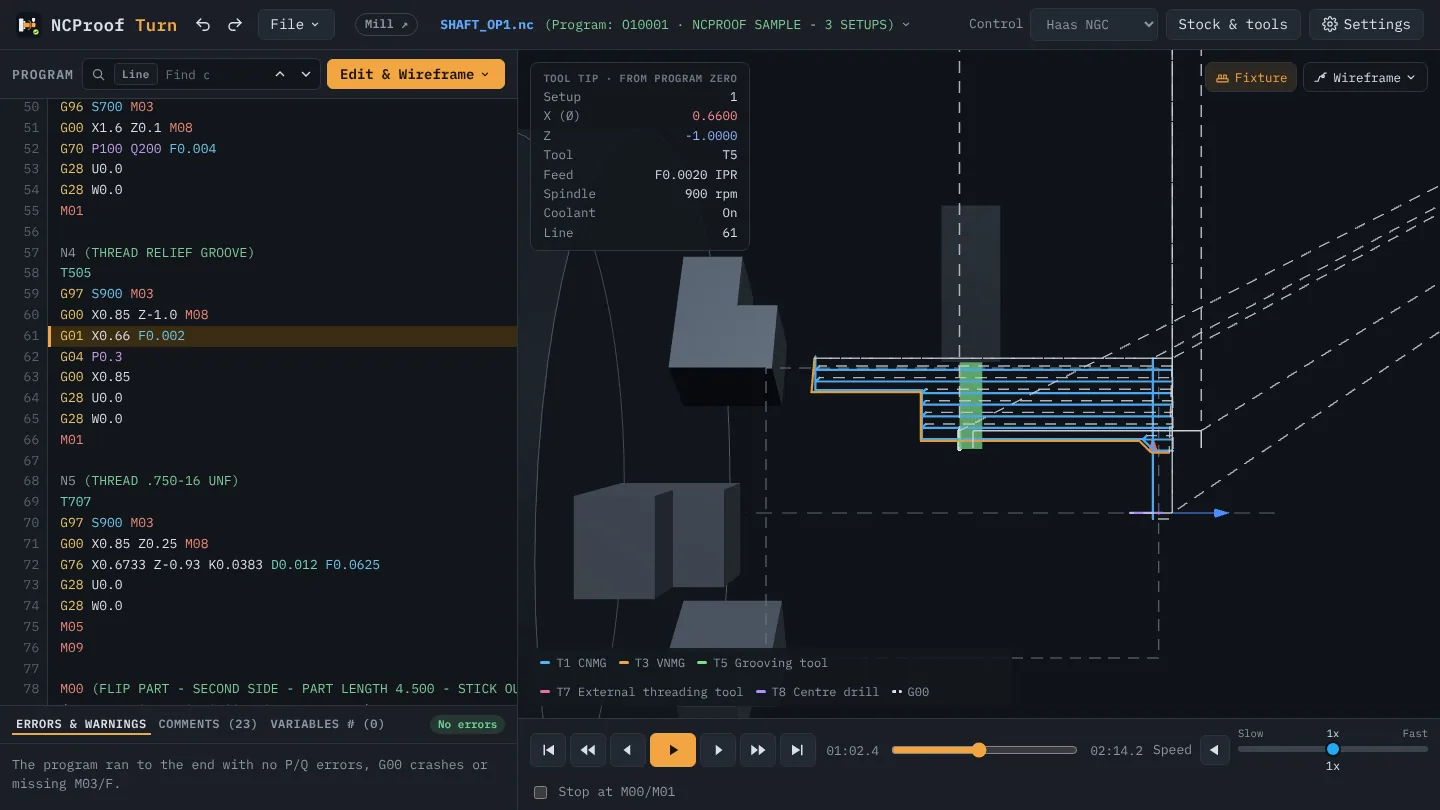
What you get
- The toolpath redraws with every key you press. Change
Z-0.3toZ-0.35and the path moves at once, no re-run needed. - The tool sits on the line your cursor is on. Move the cursor with the mouse or the arrow keys and the tool follows, so you always know which move you are looking at.
- The stock is see-through, so the whole path stays in view, inside pockets and bores too.
- ▶ runs the tool along the wireframe, and the Wireframe button sets how the path and the tool are shown: the whole program, up to the tool, or only the current tool.
How to use it
- Open a program, then pick Edit & Wireframe from the mode button above the code.
- Click in the code and type. Watch the path and the tool in the 3D view.
- When the change looks right, press Ctrl+Enter (⌘+Enter on a Mac) to go to Simulation & Stock: NC Proof cuts the stock again and re-checks every move.
- Save with Ctrl+S (⌘S).
Step-by-step help: Guide, section 9: Edit the code.